
On this page
1. Add and save your first person
- Open Add from the home screen.
- Enter a name and at least one phone number.
- Optionally choose a country and type for numbers, a photo and groups.
- Save, then check that the person appears in the home list.
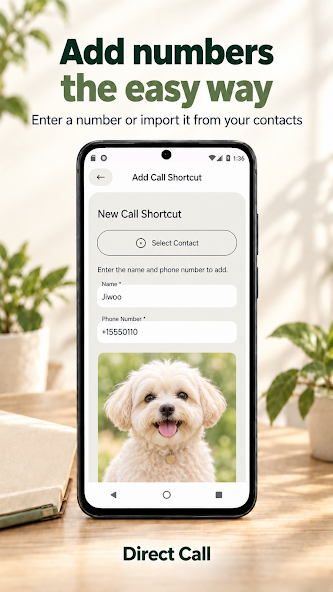
To import device contact information
- Choose contact import in the add/edit screen and grant read permission.
- Select the person and numbers to copy into the form.
- Review the information and complete the final Save.
Check numbers and photos
You can enter several numbers for one person. A chosen country may convert a number to a calling format; check country, length and duplicate warnings. A valid format does not guarantee that a number can be called.
Photos are optional. Select and adjust one, then save it. If selection is cancelled or a photo cannot be read, check existing details and continue without a photo.
2. Find a number and open your phone app
- Find a person on the home screen or search a name or number.
- Choose the home call action or a result’s Call button.
- If the person has several numbers, choose one.
- Check the number in the external phone app and start the call there.
Search covers everyone in the saved list, independent of the current group. Changing the column count does not remove people or their order.
3. Complete both item and whole-list saves
Long-press a person to edit or delete them. To change several entries or their order, use the home-screen list editor.
- Change an item or adjust its position.
- Apply the item’s changes.
- Complete the final Save for the edited list.
- Return home and check the result.
Cancelling leaves unconfirmed changes unapplied. If saving fails or conflicts are reported, review the input and retry.
4. Assign groups and organize their order
- Open group management from More on the home screen.
- Create and name a custom group.
- Choose memberships in the person’s add/edit form and apply them.
- Finish saving the person or edited list.
- Check the group tab on the home screen.
The default tab shows everyone. You can create up to two additional custom groups and put one person in several. Applying memberships alone does not complete the person’s Save.
Removing a membership or deleting a group keeps the person’s information. Editing a person from any group updates that person’s shared details.
5. Understand settings and local storage
Settings includes version, review, sharing and update options. App sharing sends the app name and store link, without people’s numbers or photos.
The app follows the system language and has no internal language selector. Per-contact widgets, premium subscriptions and direct in-app calling are not provided.
The list stays on your device without an app-operated sync server. Android backup and device-transfer coverage varies by device settings. Deleting an item does not instantly remove its external backup copies.
6. Check common problems
- Saving fails
- Check the name, country, number length and duplicates. Provide at least one valid number and finish the final Save in individual or whole-list editing.
- Contacts or photos cannot be imported
- Check permission and whether the original information exists. Numbers can be entered manually and photos can be omitted.
- The phone app does not open
- Check that a suitable phone app is installed and the number is correct.
- You want to exit
- Press Android Back on the home screen and choose Exit. You do not need to click an ad or wait for one to become ready.
For support, include the app, device and Android versions and reproduction steps. Leave out real phone numbers, address books and people’s photos.